For agencies, studios and remote teams
Share team logins.
Never share passwords.
An admin signs in to a tool once. Teammates open it from TeamPass already signed in — without seeing the password or the two‑factor code. When someone leaves, take their access away in one click.
Free for 2 teammates and 1 tool · macOS & Windows · 11 languages

One shared password is a security hole with a group chat attached.
- It leaks. Passwords end up in Slack threads, spreadsheets and old laptops.
- 2FA breaks it. Someone has to forward the code every time a teammate signs in.
- Leaving is messy. When a contractor finishes, you change the password and re-share it with everyone else.
- Nobody knows who did what. Every action looks like the same account.
How it works
Share access, not credentials.
-
1
Sign in once
An admin opens the tool inside TeamPass and signs in as usual — password, Google sign‑in, two‑factor, whatever the tool asks for.
-
2
Choose who gets it
Tick the teammates who should use it. TeamPass encrypts the signed‑in session separately for each of their computers.
-
3
They open it, signed in
Teammates click Open and land inside the tool. No password to type, copy or forward — ever.
Features
Everything an admin needs to stay in control.
Every shared account in one place
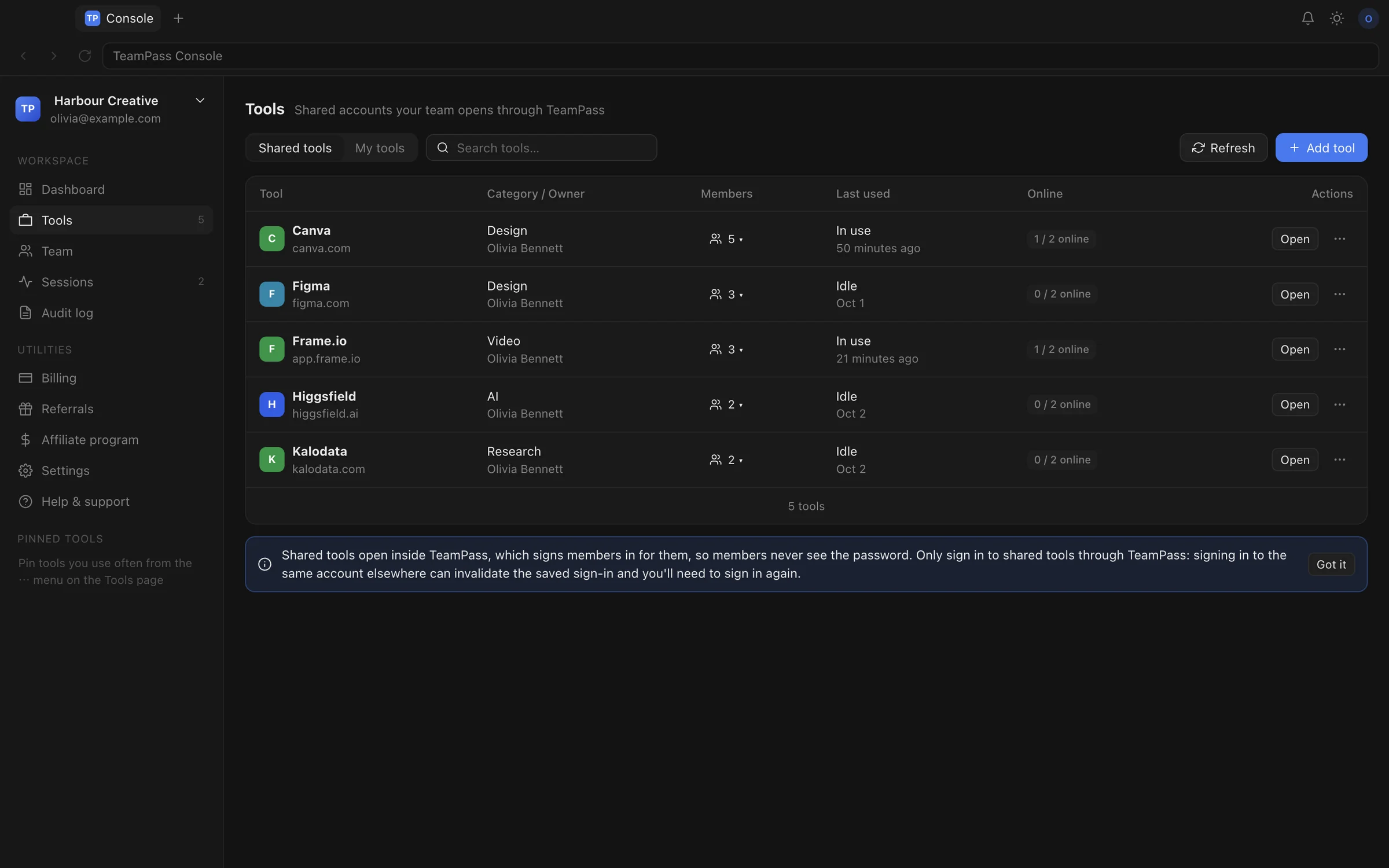
See which tools are connected, who can use each one, and who is in it right now.
- Grant or remove a teammate per tool
- Limit how many teammates can have a tool open at once
- Billing and account pages are blocked for built-in tools
- Allow or block file downloads per tool
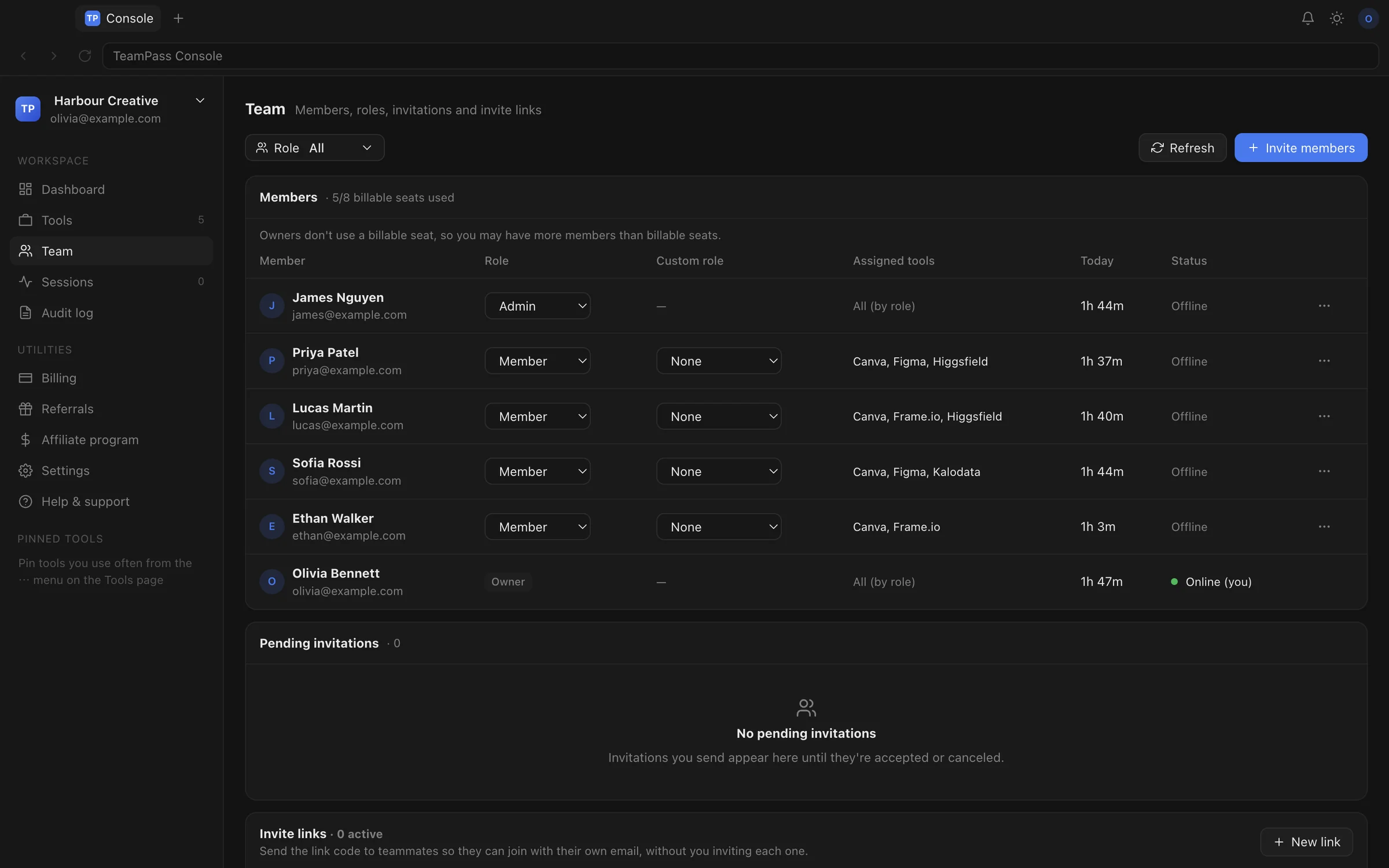
Invite people, give them the right role
Invite by email or with a join link. Owners, admins and members — or create your own roles.
- Custom roles: manage tools, manage access, view activity, end sessions…
- See each person's assigned tools and time today
- Remove someone and their open sessions close within seconds
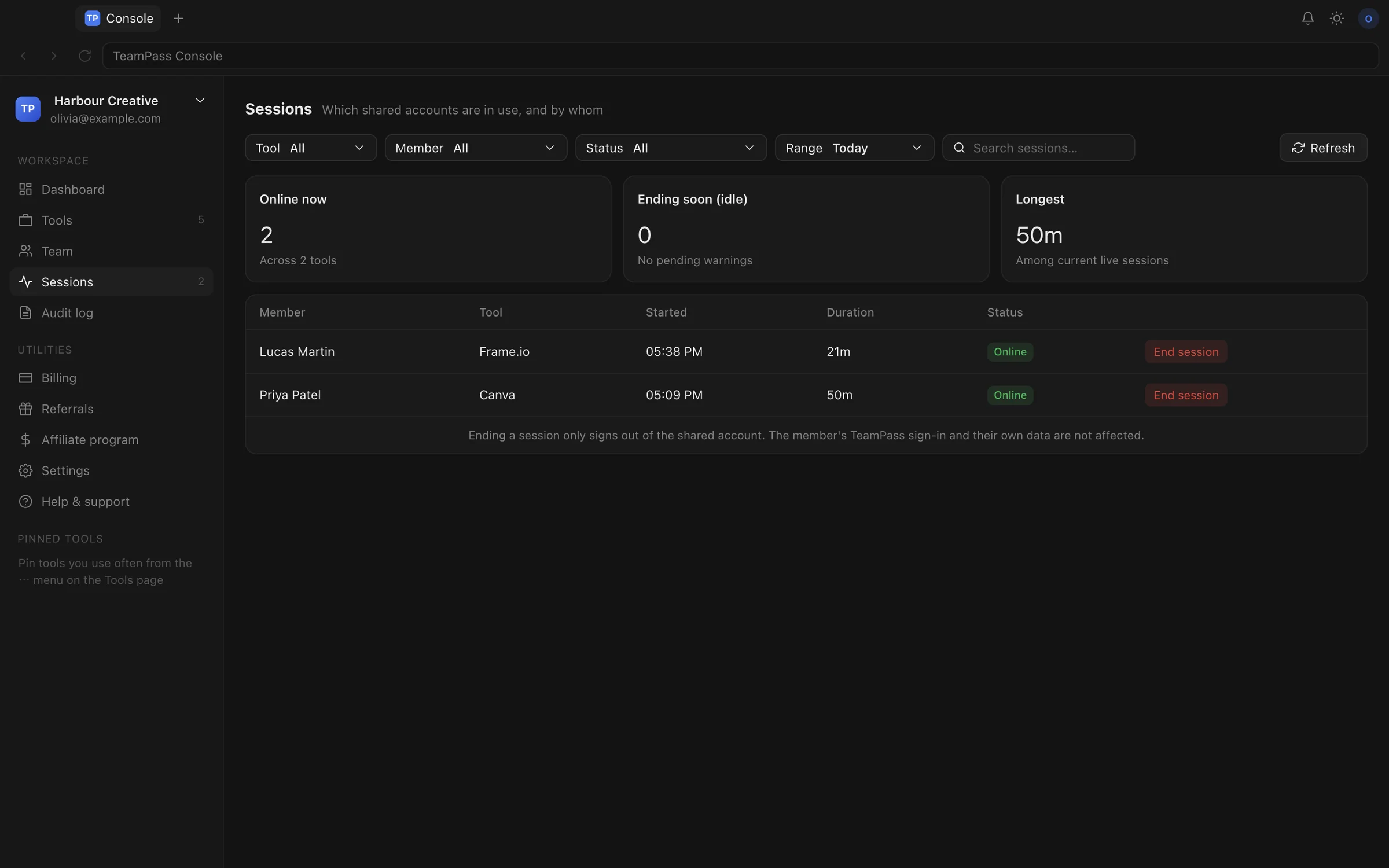
Know who is in, right now
Live sessions show who has which tool open and for how long.
- End a teammate's session with one click
- Sessions end automatically after the computer has been idle for the time you set
- Ending a session never touches the member's own data
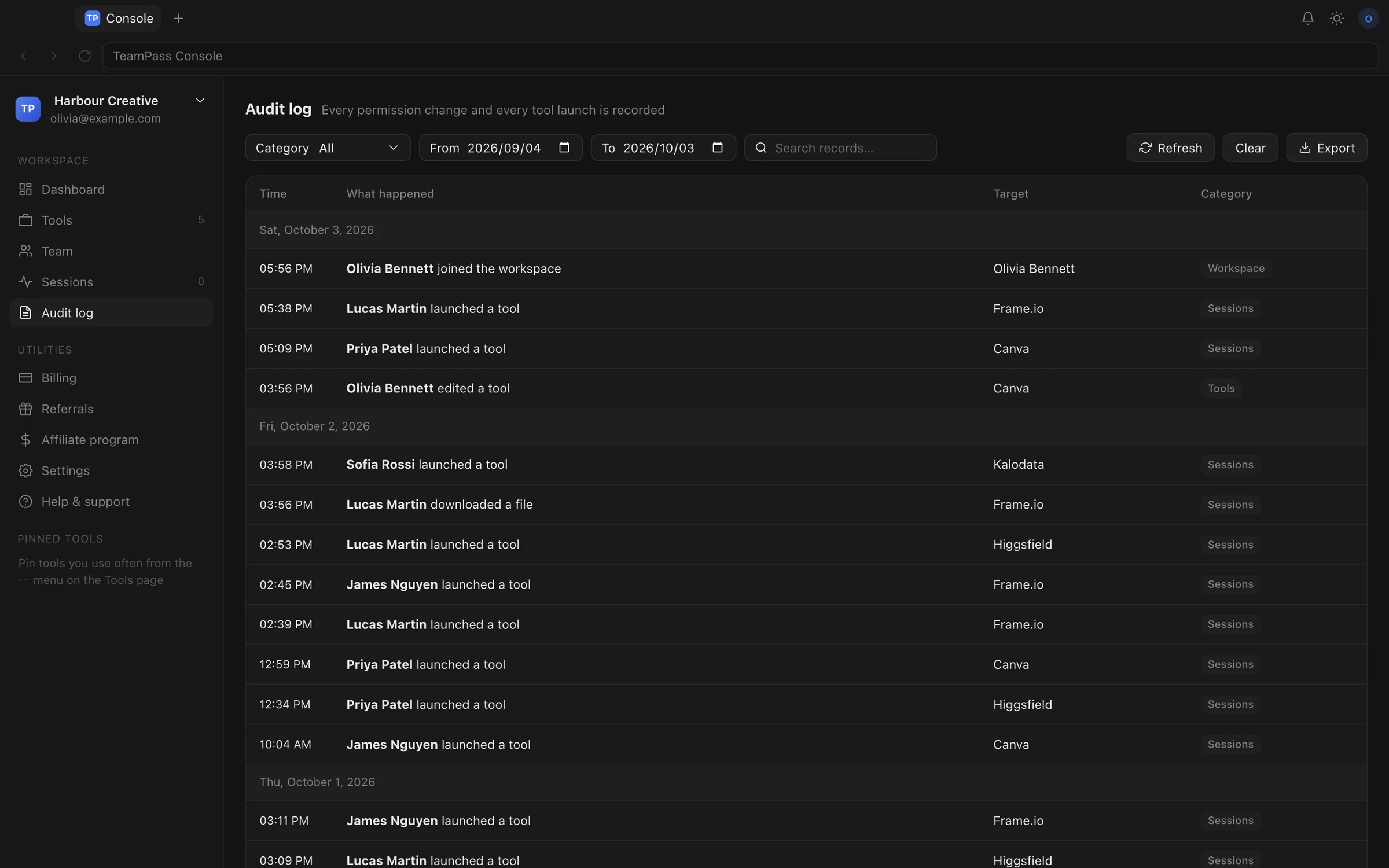
A record of who did what
Tool launches, access and member changes, saved sign-ins and downloaded files, by person and time.
- Filter by category and date; owners can export to CSV
- Kept for as long as the workspace exists
- Entries can't be edited or deleted
Downloads, on your terms
Files from shared tools are blocked unless you allow them, and every allowed download is logged first.
Expired sign-in alerts
When TeamPass spots that a tool signed everyone out, or a teammate reports it, admins are notified. Sign in again and share it in one click.
Desktop app time, opt-in
Admins can choose specific desktop apps, like Photoshop, and see how long they were in use. Nothing else.
11 languages
English, 简体中文, 繁體中文, 日本語, 한국어, Deutsch, Français, Español, Italiano, Português and Русский.
Multiple workspaces
Run separate workspaces for clients or departments and switch between them in a click.
macOS and Windows
A native desktop app for Apple silicon, Intel Macs and Windows. Mac builds are signed and notarised by Apple.
Security
Encrypted on your devices. No passwords stored.
Encrypted for each device
The signed‑in session is encrypted on the admin's computer, separately for every teammate's device, with keys that never leave those devices. Our servers store only these encrypted copies and never receive the keys that open them.
No password stored. Anywhere.
TeamPass keeps the result of signing in, never the password. You sign in to TeamPass itself with a one‑time email code, so there's no TeamPass password to steal either.
Revoke in seconds
Remove a teammate or untick a tool and their open session in TeamPass closes within seconds, and their encrypted copy is deleted from our servers.
Enforced on the server
Who may fetch a shared sign-in is checked on our servers, not just hidden in the app.
Contained browsing
Shared tools open in their own window. Navigating away from the tool's own sites, or to a blocked page, is stopped.
Hosted in Australia
Data is stored on our servers in Sydney and handled under the Australian Privacy Principles.
What TeamPass records
- Which shared tool was opened, by whom and for how long
- Pages visited inside shared tools (without anything after "?") and their titles
- Files downloaded, where an admin allowed downloads
- Time in desktop apps, only the ones an admin listed
What it never records
- Screenshots or screen recordings
- Keystrokes
- The contents of pages or files
- Browsing outside shared tools
- Any desktop app an admin hasn't listed
Pricing
Free to start. Pay only for what you add.
Free
US$0
forever
- 2 teammate seats
- 1 shared tool
- The owner doesn't use a seat
- Every feature included
Add as you grow
Extra seat
US$10
per seat / month
- One more teammate on your shared tools
- Add or remove any time
- Charged only for the rest of the month
Extra tool
US$25
per tool / month
- One more shared account
- Remove it any time
- Cancel any time from the app
Billed monthly by card through Stripe. Prices exclude taxes that apply where you are. Not happy? Ask for a full refund within 14 days of a charge. Billing terms
FAQ
Questions, answered.
Can teammates see or copy the password?
No. They never type it and TeamPass never stores it — what's shared is the signed‑in session, encrypted for their device. Once inside a tool they can use it like any signed‑in user; for built‑in tools, pages such as billing and account settings are blocked.
Does it work with two-factor authentication and Google sign-in?
Usually, yes. The admin completes whatever sign‑in the tool asks for, once, and teammates use the resulting session without the code or the Google account. Some tools ask again on every new device — the free plan is the easiest way to check yours.
What happens when someone leaves?
Remove them from the workspace. Tools they have open in TeamPass close within seconds and their encrypted copy is deleted. They never had the password, so there's nothing to change for everyone else.
What if a tool signs us out?
Admins are notified when TeamPass detects it or a teammate reports it. An admin signs in again inside TeamPass and clicks Save and share; everyone with access gets the new sign‑in.
Which tools work with TeamPass?
Most web tools that keep you signed in with standard browser cookies; you add them by their web address. Tools that tie a sign‑in to one device may ask teammates to sign in again. Some services don't allow an account to be shared — whether a particular service does is set by its own terms, and following them is up to you.
Where is our data kept?
On our servers in Sydney, Australia. Shared sign‑ins are stored only as encrypted copies we cannot read. See the privacy policy for everything we collect and who we share it with.
How do I cancel?
From the Billing page in TeamPass, any time. Your add‑ons stay until the end of the month you've paid for; then the workspace returns to the free plan. Nothing is deleted.
Stop sending passwords around.
TeamPass is in early access. Tell us about your team and we'll send you the download for macOS or Windows.